Visual Studio Code
In the KaaS team we mainly use Visual Studio Code for development. We recommend for both internals and externals to use VSCode as it comes with plenty of useful plug-ins and a handy terminal.
It can be downloaded from code.visualstudio.com
Ideally all code changes and documentation are written in VSCode as it helps enforce proper review and general best practices (through plug-ins).
Guidelines on plug-ins
Generally every plug-in published is available to use. But you should always be mindful of what you install and try to look for the small blue checkmark that shows a verified publisher.
Recommended plug-ins (For development)
For development, we recommend installing the plugins listed below:
- markdownlint (By David Anson)
- PowerShell
- Gitlens - Git supercharged
- YAML (By Red Hat)
- Prettier - Code formatter
- Snyk
These plug-ins are primarily focused on readability and to help align with best practices. As a general recommendation look for a plug-in that matches the coding language you are currently using to help produce better code.
Recommended plug-ins (For Documentation / Wiki)
As a team we would like for all contributors of our wiki to use this plugin with
the following configuration.
If you are just updating KaaS documentation, the only plugin you should install is markdownlint
You can install that plugin from here.
Setup of markdownlint
markdownlint requires you update your settings.json, to do this open the settings of the plugin:
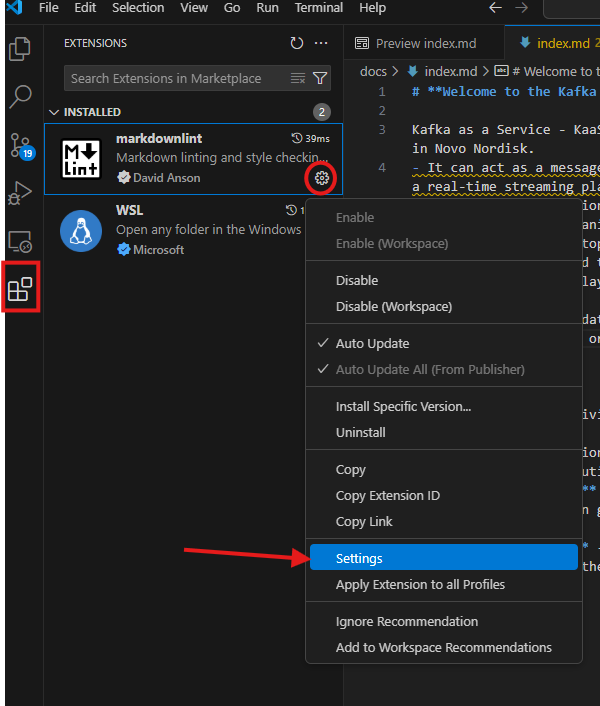
Then click "Edit in settings.json":
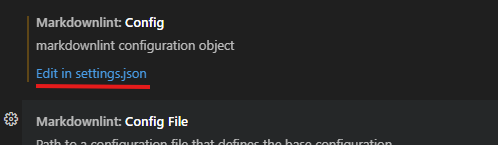
And add the following line "MD013": { "line_length": 80 } so it looks like below:
(json)
"markdownlint.config": {
    "MD013": { "line_length": 80 }
},
Then click CTRL+S to save the changes in VSCode.
Also see screenshot as an example:
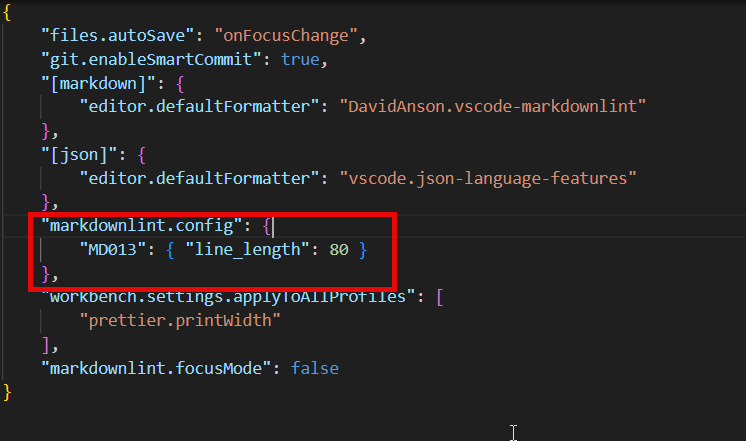
This will show a warning on lines that are longer than 80 and helps ensure readability in reviews etc. You can also include format on save, but this will format the whole document you are working in.
For more information refer to the official markdownlint documentation