Setting up Admin Account & Privileged Accesses
Purpose
The purpose of this page is to outline the steps to requesting and setting up an admin account (admin
1. Request an Admin Account
Go to novoAccess , go to 'Account Management' in the upper left corner menu and click 'Create Personal Account' (For me). Select 'Corporate Active Directory'. On the AccountType choose 'admin' and request.
Go to 'Manage User Access', and write 'corepas' in the search bar. Select the 'Unified PIM: Corepas User', next and request it.
The requests needs to be approved by your hiring manager + back-end Owner group and usually takes 2-3 days.
2. Enabling access requests with Admin Account
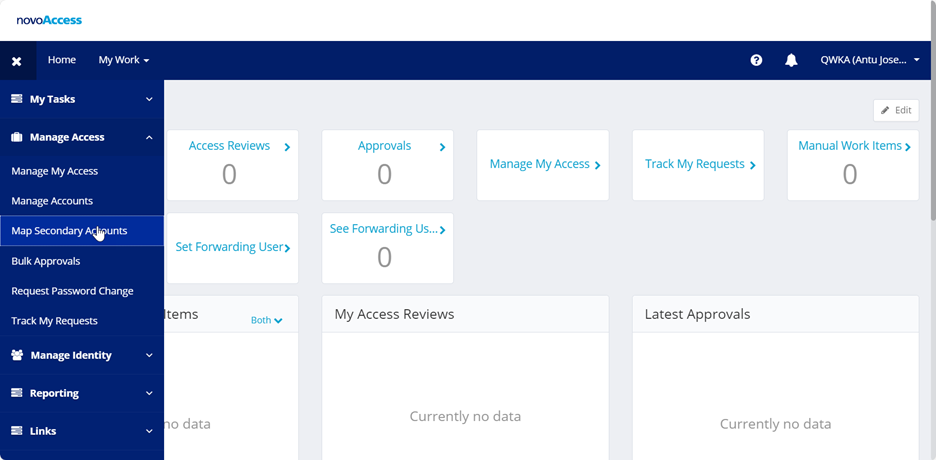
Go to novoAccess, and access the “Manage Access” menu and “Map Secondary Accounts” sub menu.
In the 'Application Name' type “Kafka as a Service_AD” and select it.
In the 'Select Account to Link' add your admin account (CN=admin<initials), next and 'Link Account'
This process is repeated with 'AWS_AD'.
(note: You also need to map 'Kafka as a Service_AD' to your normal account)
3. Requesting Privileged (Admin) accesses
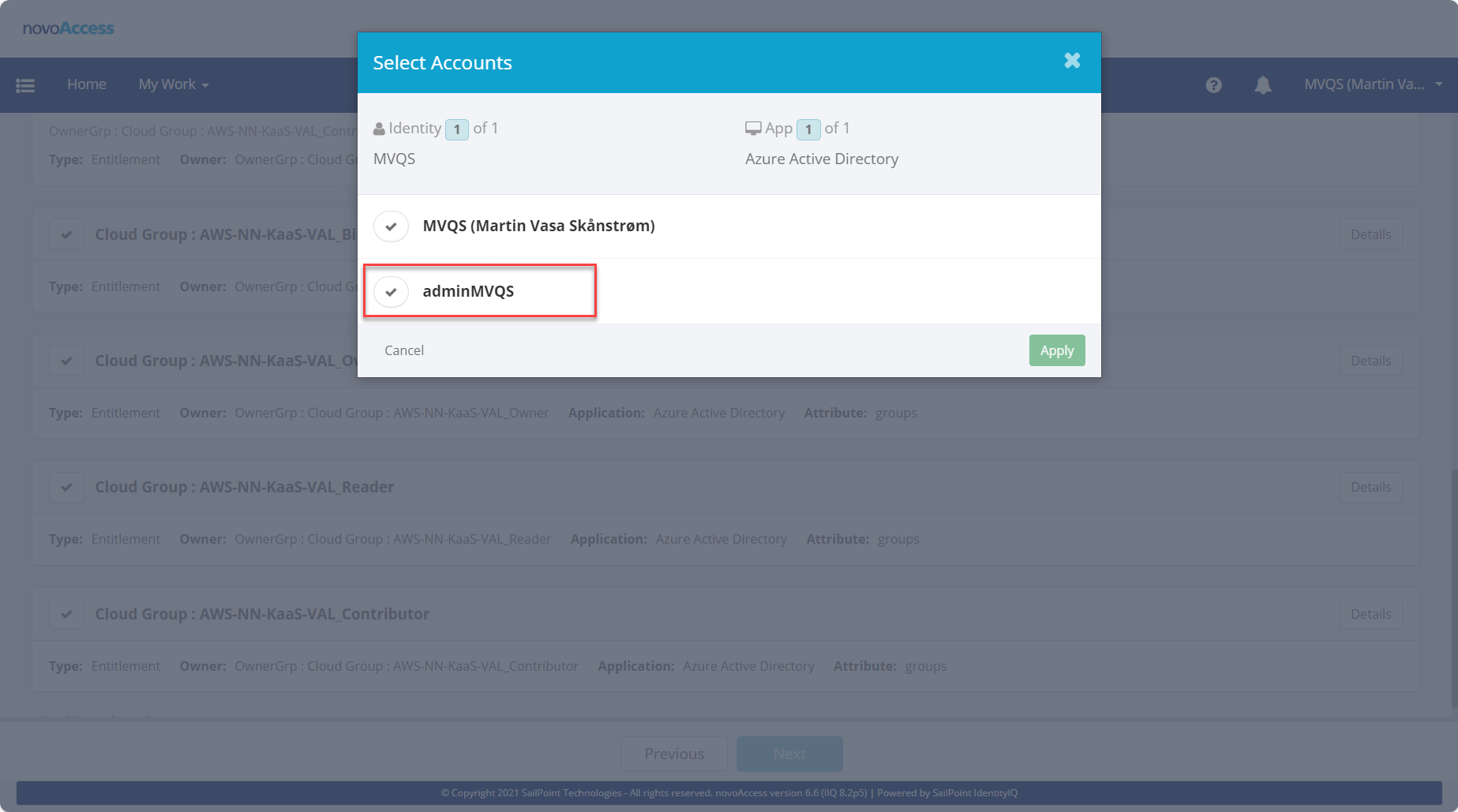
Go to novoAccess, click 'Manage user Access'. Type in the accesses found in Onboarding Checklist in the search bar and click the checkmark left of the name. If the mapping done in step 3 is completed, select the admin account on the prompt when requesting accesses, and request the accesses.
The requests need to be approved by your hiring manager + back-end Owner group and usually takes 2-3 days.
Logging in with Admin Account
In order to access resources with your admin account, you need to retrieve the password from the PIM solution (passwords are automatically rotated and valid for 8 hours)
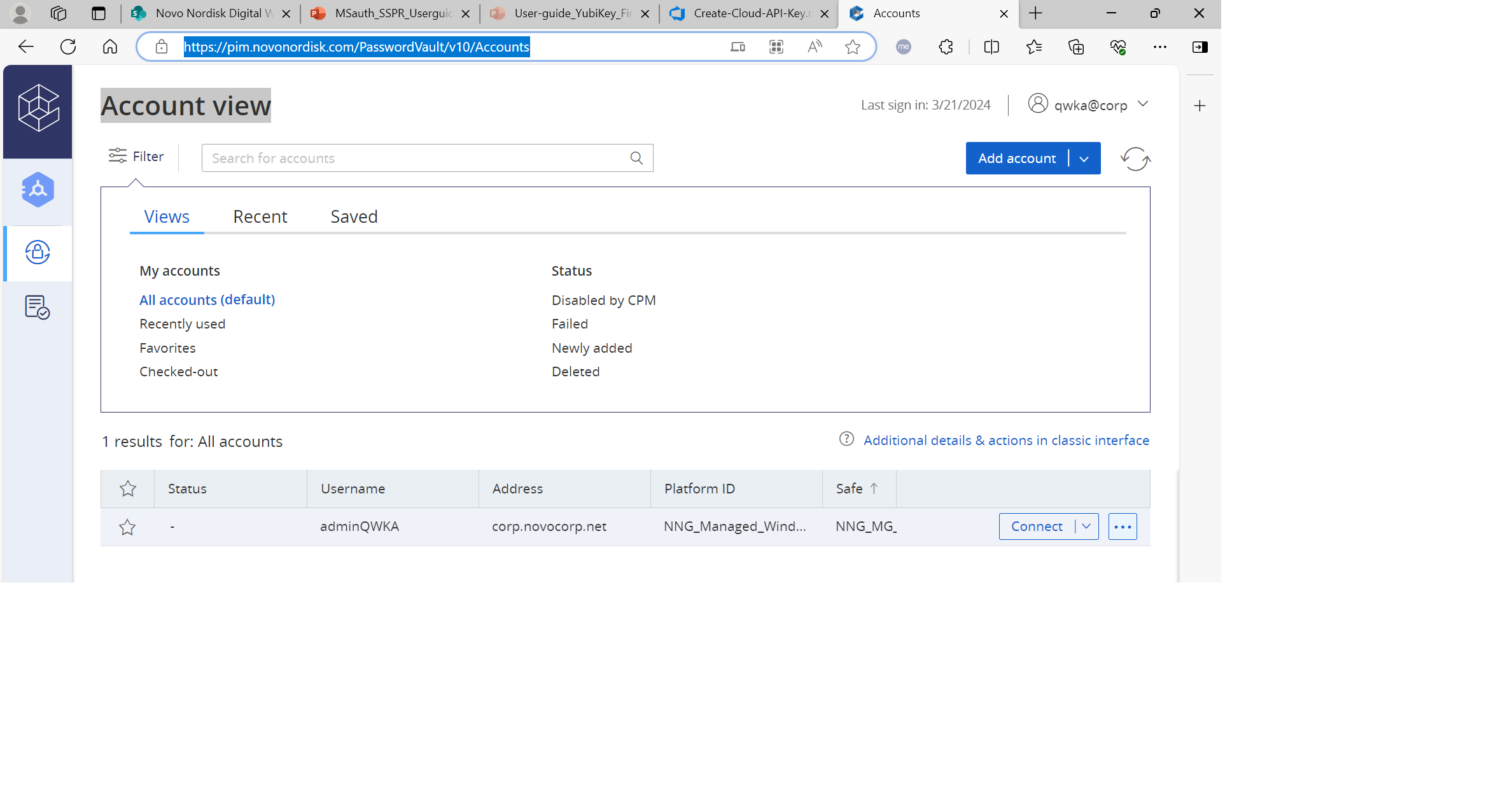
Go to PIM or type 'pim' in your browser.
- Username:
In the “Account View” and find the admin account. Copy the password by clicking on the three dots and pressing copy.
Open an incognito browser, go to Azure Portal and login in with admin
Setting up MFA with normal and Admin account
At some point, you may be prompted to setup MFA. Follow below guides.
- If you are an external, you can still setup MFA with your own device:
- Follow this guide for normal user (get Microsoft Authenticator from app store)
- For setting up admin account, open edge as administrator (from command prompt
runas.exe` /user:CORP\AdminXXXX /profile "C:\Program Files (x86)\Microsoft\Edge\Application\msedge.exe) or right clicking icon in start menu. Log in with admin account. Follow same steps as normal user.