Purpose and Scope of this Document
This document provides solutions and workarounds for common known issues encountered with the KaaS Platform.
1. Issue with viewing topics on private cluster in Confluent Cloud UI
Description
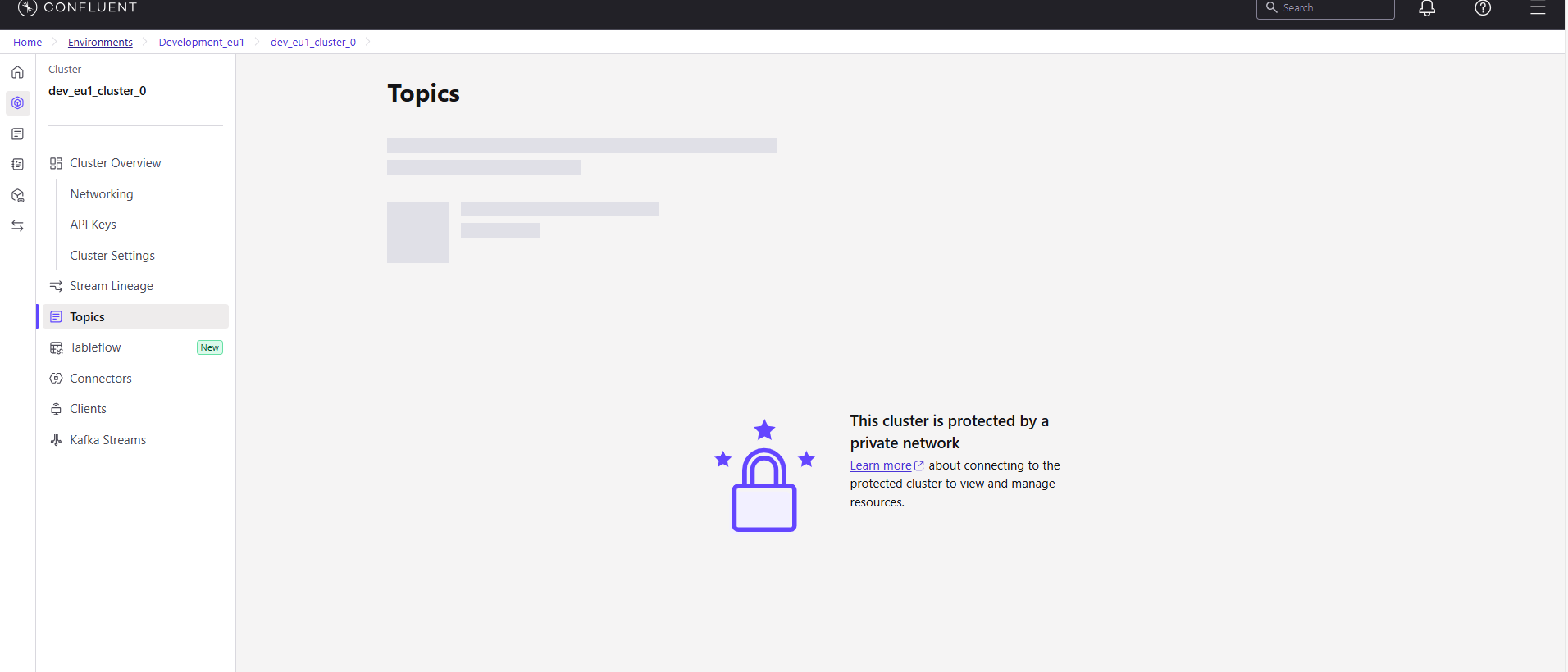
This is an intermittent issue observed by multiple users. Users may suddenly find themselves unable to access messages on private cluster topics, with the following message displayed:
"This cluster is protected by a private network"
An example of this error is shown in the image below:
Resolution Steps
Follow these steps to resolve the issue:
Step 1: Clear Browser Cookies
Clear all cookies from your browser. This can typically be done through your browser's settings under Privacy or History.
Step 2: Re-login to Confluent Cloud UI
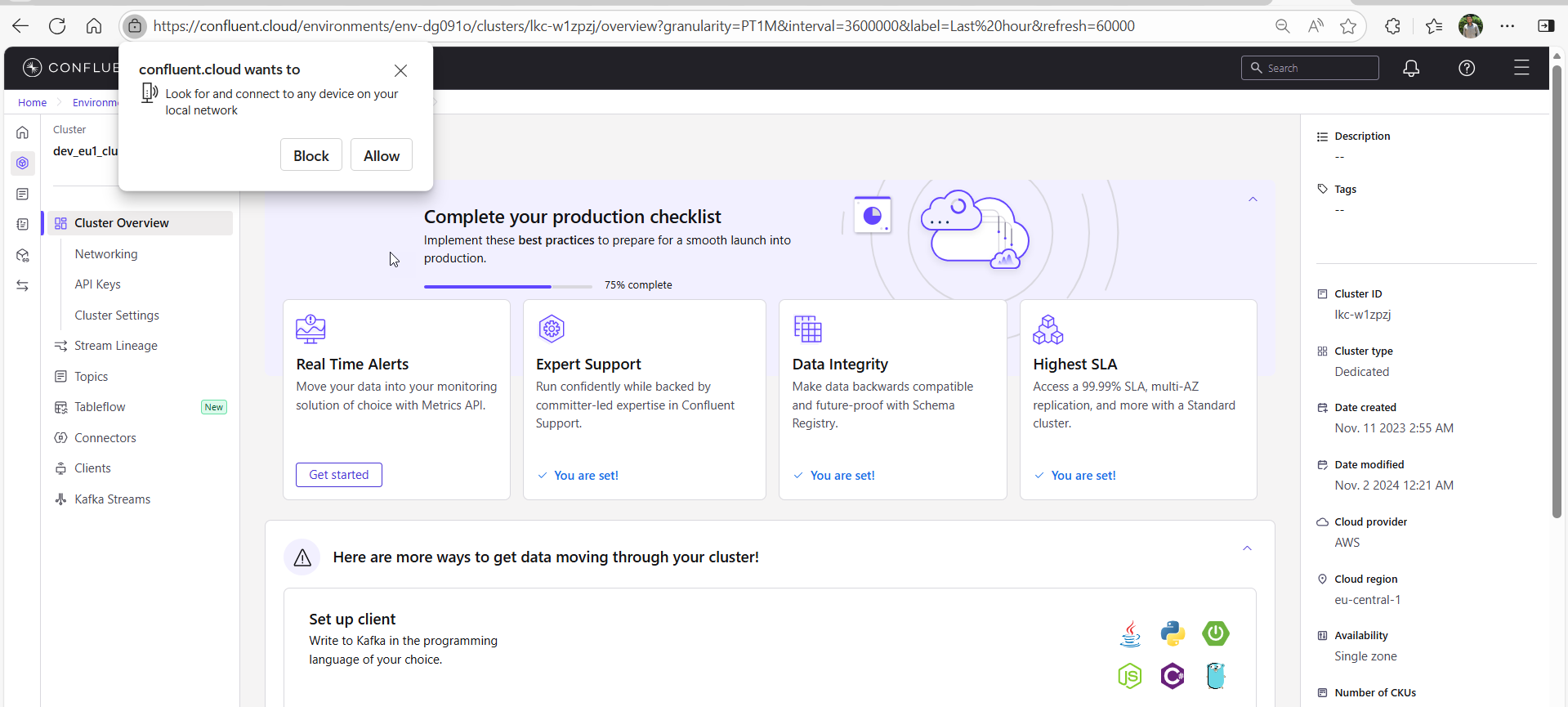
After deleting the cookies, log in to the Confluent Cloud UI again. Upon login, a browser popup will appear requesting permission for Confluent Cloud to connect to devices on your local network.
Action Required: Allow this permission by clicking the allow button on the popup.
The popup will look similar to the image shown below:
Step 3: Refresh the Browser Page
If you still do not see the messages on the topics after allowing local network access, refresh the page in your browser. The topic messages should now be visible.
2. Kafka topic visibility issue in Confluent Cloud UI for cloud desktop users
Description
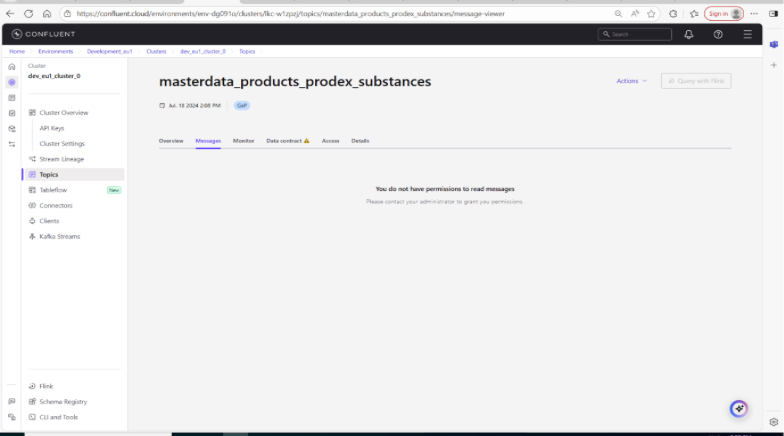
Cloud desktop user is trying to access the messages from a Kafka topic but unable to view it in Confluent Cloud.
An example of this error is shown in the image below:
Resolution steps
-
Verify the user has required Supporter level access.
-
Identify the user is accessing Confluent Cloud whether from VDI environment or from NN provided laptop
-
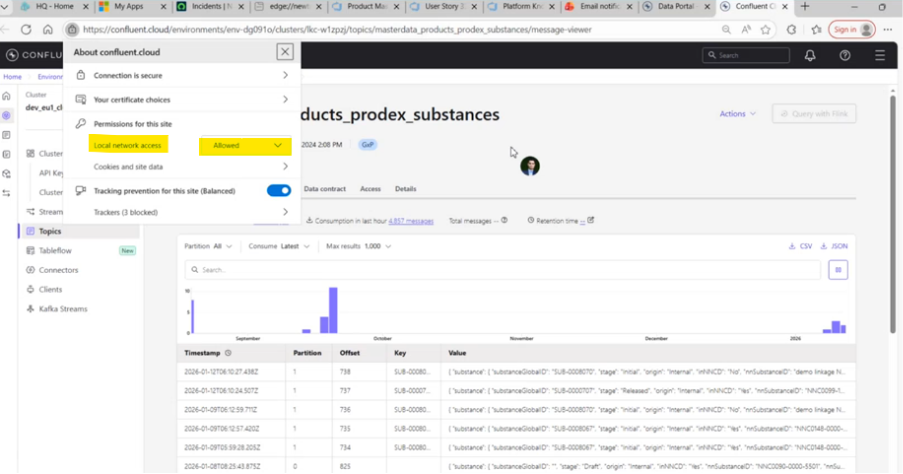
Check that browser security settings on VDI are set to allow. By default it will be set as blocked which prevents proper connectivity to Confluent Cloud when it is blocked.
-
By default the browser permission Pop-up won't appear, which needs to be enabled manually.
-
After enabling the browser security settings to "allow", user will be able to view the messages in the topic.
Below image is for the reference:
- Confirm with the requestor that the messages are visible after the changes.
Conclusion
The issue is not related to Kafka access or permission which is caused by browser security restrictions in the user’s VDI environment. Allowing local network access will resolve the issue.