Purpose and scope of this Document
This document serves as a small self-help guide to unblock your state if it has been locked by mistake. The audience of this guide includes architects, developers, and DevOps specialists working with KaaS.
Disclaimer
This guide requires YAML pipeline knowledge and should only be used if you are able to modify your pipeline templates by yourself. If not, it is advised to create a support case where you include a link to the failed pipeline run.
The common error cause
The most common way of encountering a state lock is by cancelling a pipeline while a Terraform command is running. This can be destructive to the state file, resulting in a state lock. It is important to note that if this is not how you encountered the error, then this guide may not cover your case. Therefore, it is important to contact support with a link to the failed pipeline, so they may assist you better.
The error message
The state lock error will likely look something like this:
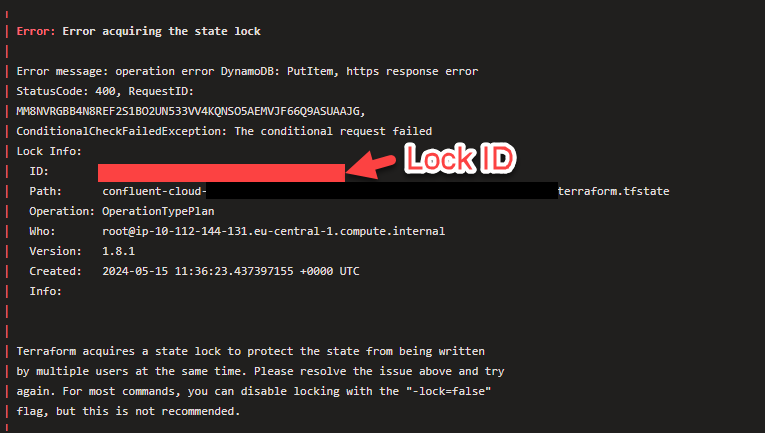
Take note of the lock ID, as you will need it for later.
The solution
The solution is to unblock your state forcefully using this command:
1 | |
This command requires the lock ID shown in the previous section, which will almost always be part of the error message.
The command should be executed before the plan step in the plan-stage.yaml file, typically placed in /pipeline-template/templates/plan-stage.yaml. It should be added before the terragrunt or Terraform plan commands. See the following example:
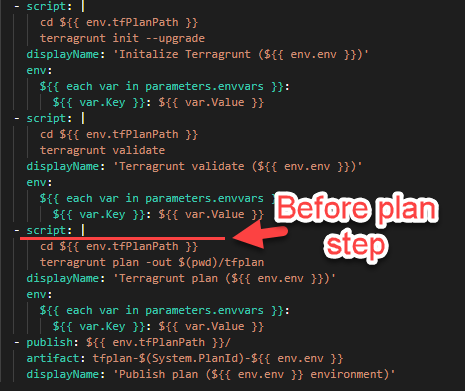
The red line indicates where you can add the command, and the pipeline should display a message indicating that the state has been successfully unlocked.
Remember to remove the command immediately afterward as it is not advisable to forcefully unblock your state on every run.
* NOTE: For pipelines running Terraform commands, the state unlocking command must be terraform instead of terragrunt.