Kafka Tools
Purpose and Scope of the Document
This document serves as a user guide for installing and configuring KafkIO, a lightweight Kafka GUI tool for managing Confluent Kafka clusters. It includes step-by-step instructions for users to download, install, and configure KafkIO to connect with Confluent Cloud clusters. The objective is to provide a clear reference for setting up KafkIO with proper security configurations, SSL/TLS certificates, and authentication mechanisms, ensuring secure and efficient interaction with Kafka clusters. This guide will help users successfully establish connections to Confluent Cloud, troubleshoot common issues, and leverage KafkIO's capabilities for both development and production use cases.
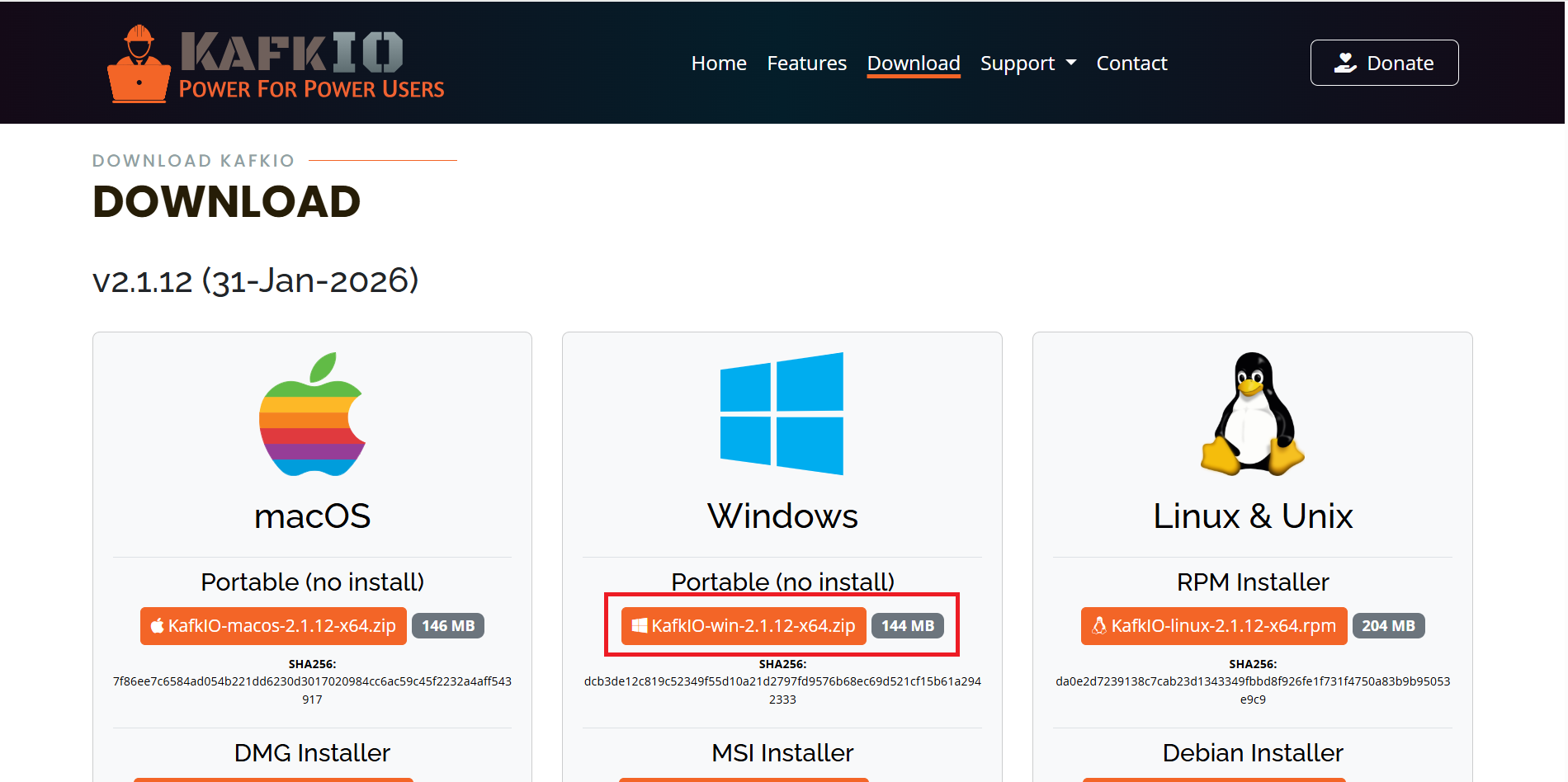
You can download and install KafkIO from this location:
When downloading, choose the Windows Portable option (KafkIO-win-2.1.12-x64.zip). This will download a zip file you can extract anywhere on your file system.
Installation Steps
- When downloaded, create the folder:
C:\REPOS\KafkIOif it does not already exist - Unzip the downloaded file into
C:\REPOS\KafkIO. Depending on the version of KafkIO, the folder structure will contain the application executable and supporting files. - Create a subfolder:
C:\REPOS\KafkIO\certificatesfor storing SSL/TLS certificates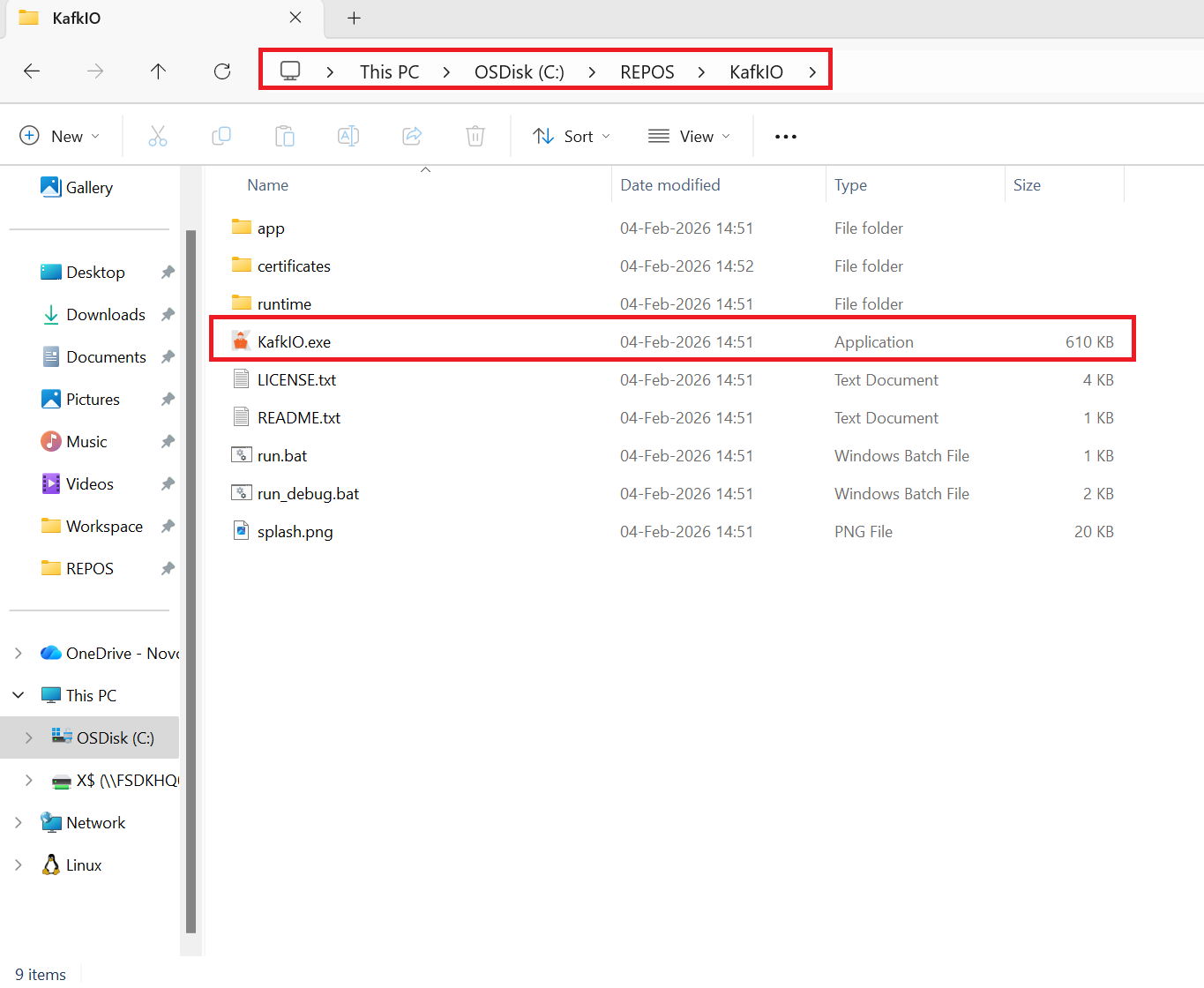
- You should now be able to open KafkIO and use it. (Consider also making a shortcut on the desktop for easy access).
Notes on KafkIO:
KafkIO is an alternative to tools like Kafka UI, Conduktor, or Offset Explorer for managing Kafka clusters. We have found that:
- KafkIO is fast and lightweight - Native desktop application with no web servers or Docker required
- Everything with KafkIO is local - No cloud data storage, all configurations are stored locally on your filesystem, making it secure
- The user interface is intuitive - Easy navigation for browsing topics, producing/consuming messages, and managing schemas
- Full Confluent Cloud support - Works seamlessly with Confluent Cloud, including Schema Registry, Kafka Connect, and ksqlDB
- Comprehensive security - Supports SASL_SSL, all authentication mechanisms (PLAIN, SCRAM, AWS_MSK_IAM), and all key formats (PEM, JKS, PKCS12)
Connecting to Confluent Cloud:
Step 0: Download Required Certificate
Before configuring the connection, you need to download the ISRG Root X1 certificate:
-
You need to have "isrg-cert.crt" downloaded. Use the below link:
-
Save it as
isrg-cert.crtin the folder:C:\REPOS\KafkIO\certificates\isrg-cert.crt
Note: Confluent Cloud uses Let's Encrypt certificates. This certificate is required for SSL/TLS connections.
Step 1: Get Your Credentials from Confluent Cloud
- Log in to Confluent Cloud Console
- Select your Environment and Kafka Cluster
- Navigate to Cluster Overview > Cluster Settings and copy the Bootstrap Server URL
- Create or use an existing Service Account API Key:
- Navigate to your Kafka cluster, then under the Cluster overview menu, click API Keys
- Click + Add key
- On the "Select an account for API key" screen, select the Service account tile and choose the desired service account from the list
- Click Next
- On the "Resource scope" page, select Kafka cluster and choose your specific environment and cluster
- Click Next
- Optionally, add a name and description for the key
- Click Download and continue to save your API Key and Secret securely
For Schema Registry (if needed): - From your Environment, go to Stream Governance API > Credentials - Create and save the Schema Registry API Key and Secret - Note the Schema Registry endpoint URL
Step 2: Configure Connection in KafkIO
- Open KafkIO
- Click File > + Add Cluster
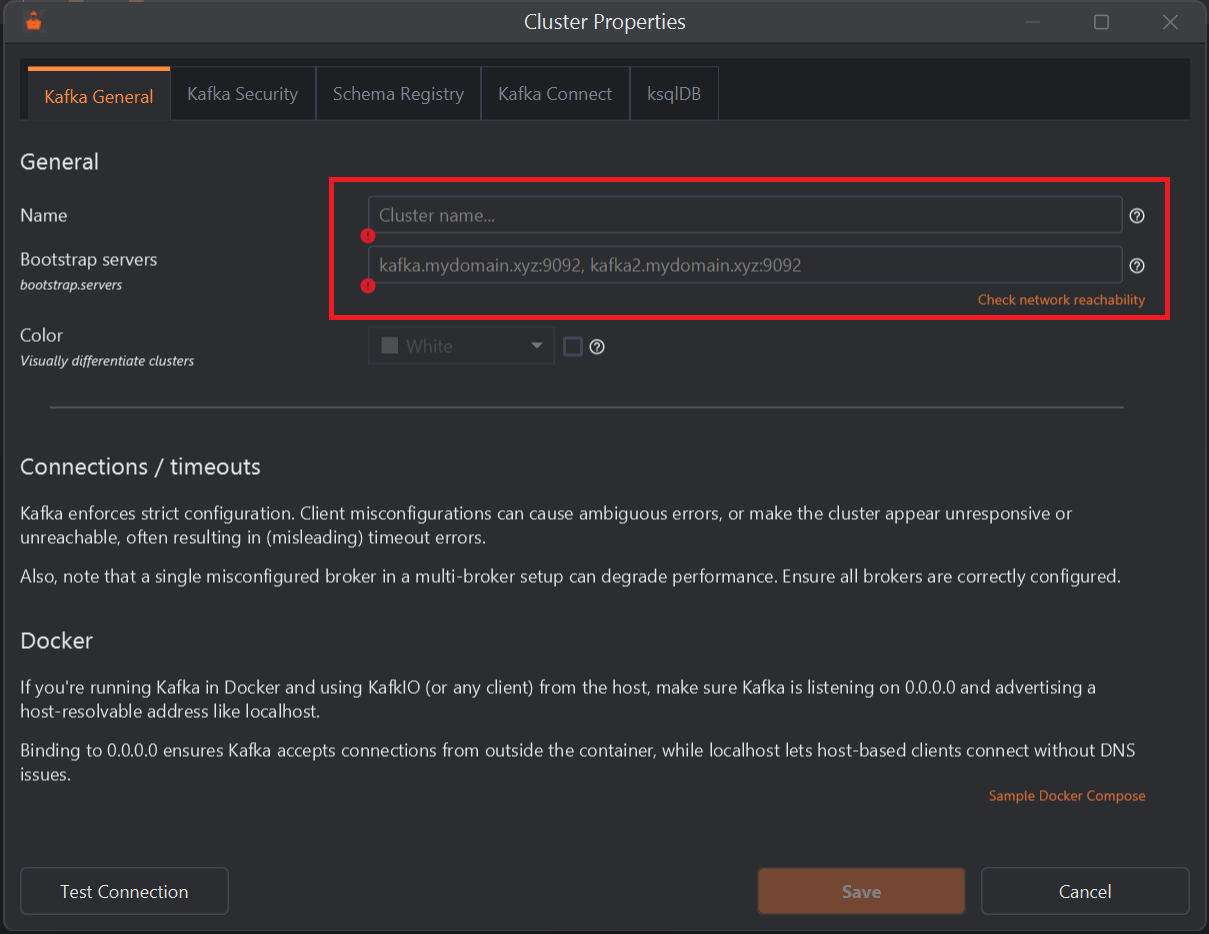
- You will see the Cluster Properties dialog with multiple tabs
Kafka General Tab:
Configure the following settings:
- Name: Give it a friendly name (e.g., "Confluent Cloud Prod")
- Bootstrap servers:
pkc-xxxxx.us-east-1.aws.confluent.cloud:9092(or your bootstrap server from Confluent Cloud)
Kafka Security Tab:
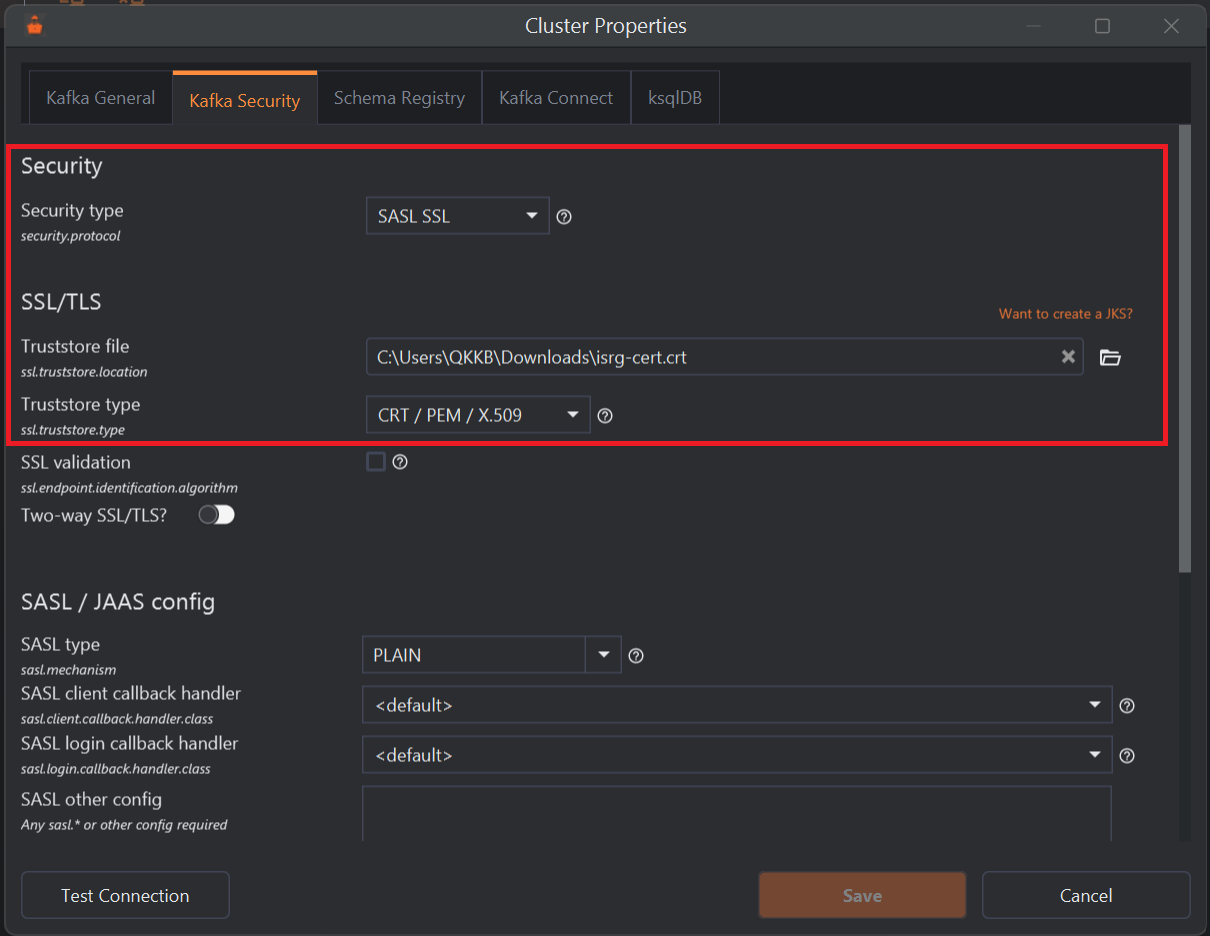
Configure the security settings:
- Security type: Select
SASL_SSL - Truststore file: Browse and select the certificate file
C:\REPOS\KafkIO\certificates\isrg-cert.crt - Truststore type: Select
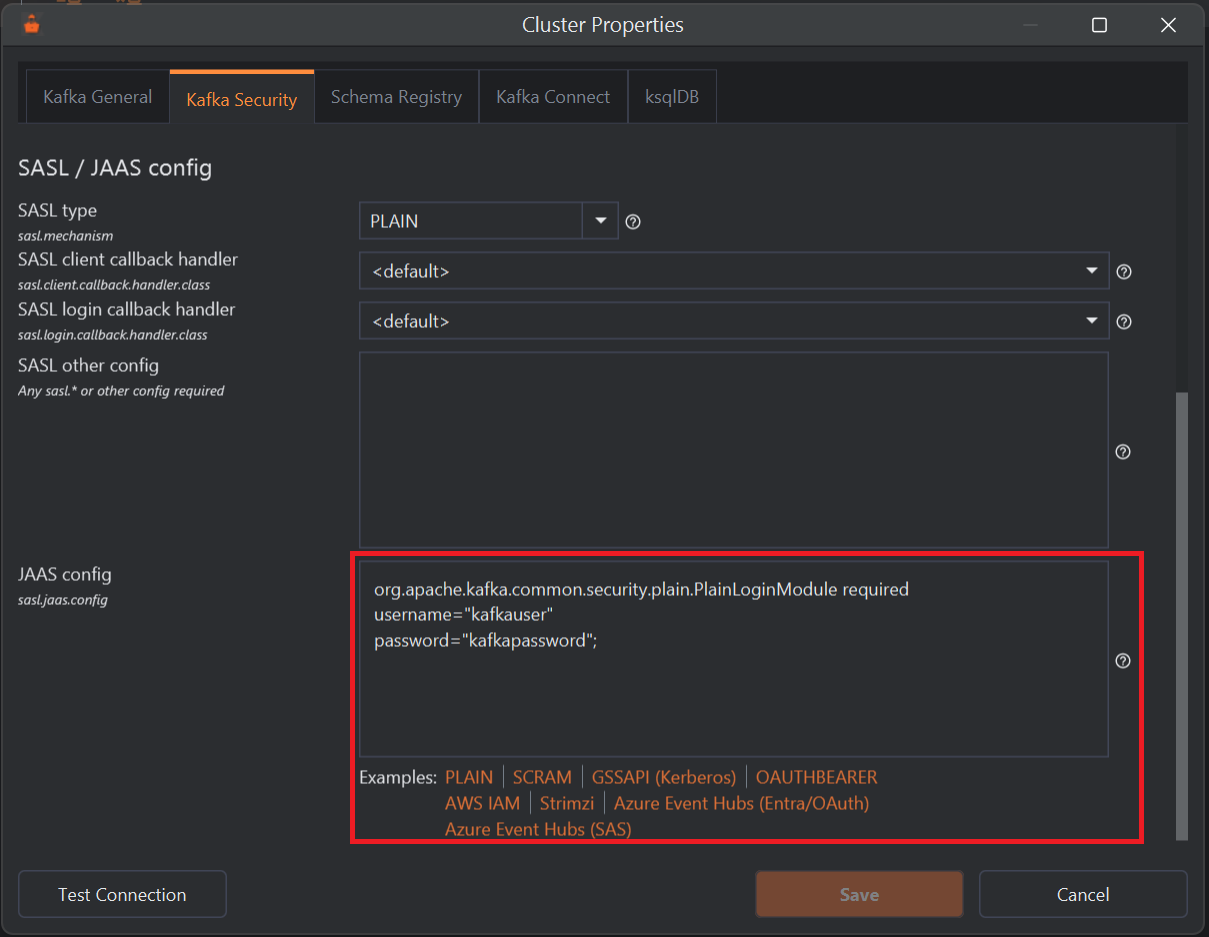
CRT / PEM / X.509 - SASL type: Select
PLAIN - JAAS config: Enter the following configuration:
Replace
1
2
3
org.apache.kafka.common.security.plain.PlainLoginModule required username="API_Key" password="API_Secret";API_KeyandAPI_Secretwith your actual Confluent Cloud API credentials
Example JAAS config:
1 2 3 | |
Schema Registry Tab (Optional):
If you're using Schema Registry:
- Schema Registry URL:
https://psrc-xxxxx.us-east-1.aws.confluent.cloud - Authentication:
Basic Authentication - Username: Schema Registry API Key
- Password: Schema Registry API Secret
Test and Save:
- Click Test Connection to verify the configuration
- If successful, you should see a connection success message
- Click Save to save the cluster configuration
Tips and Tricks:
Certificate Configuration (Required for Confluent Cloud)
You need to have the isrg-cert.crt certificate file for connecting to Confluent Cloud:
- Download the ISRG Root X1 certificate from Let's Encrypt (Confluent Cloud uses Let's Encrypt certificates)
- Save the certificate file as
isrg-cert.crtinC:\REPOS\KafkIO\certificates\isrg-cert.crt - In KafkIO connection settings, go to the Kafka Security tab
- Set Truststore file to
C:\REPOS\KafkIO\certificates\isrg-cert.crt - Set Truststore type to
CRT / PEM / X.509
Common Issues:
Connection Timeout:
- Verify the bootstrap server URL is correct in the Kafka General tab
- Check if your firewall allows connections to *.confluent.cloud on port 9092
- Test connectivity: Test-NetConnection pkc-xxxxx.us-east-1.aws.confluent.cloud -Port 9092
Authentication Failed:
- Double-check API Key and Secret in the JAAS config field (no extra spaces)
- Ensure Security type is set to SASL_SSL in the Kafka Security tab
- Ensure SASL type is set to PLAIN
- Verify the JAAS config format:
1 2 3 | |
SSL Handshake Failed:
- Ensure you have the correct certificate file: isrg-cert.crt in C:\REPOS\KafkIO\certificates\
- Verify the Truststore file path is correct in the Kafka Security tab
- Ensure Truststore type is set to CRT / PEM / X.509
Access Denied: - Verify your API Key has appropriate permissions (ACLs) in Confluent Cloud - For granular access, ensure topic-level permissions are configured - Wait 60-90 seconds for ACL changes to propagate
Further Resources
We refer to the official documentation for KafkIO or Confluent Cloud for further reading:
- KafkIO Website: https://www.kafkio.com
- KafkIO Features: https://www.kafkio.com/features
- KafkIO FAQ: https://www.kafkio.com/faq
- Confluent Cloud Docs: https://docs.confluent.io/cloud/
Current Version: v2.1.12
Supported OS: Windows 7/10/11 (and older versions)